
How to install ATI driver in ArchBang
I got an email from a reader asking me about how to install the ATI driver in ArchBang Linux. Normally I would advice him to read the Arch Wiki but since the new update of ATI catalyst is quite troublesome, I decided to write this post instead. If you’re inexperienced with Arch Linux, you may got a lot of troubles to install the new ATI catalyst inasmuch as it got compatibility problems with the Linux kernels and Xorg-server packages. Specifically, the new ATI driver (11.11) cannot work with the new xorg-server (1.11) when it can only work with the newest Linux kernel (3.1). All in all, if you got problems when installing the new ATI driver or feel overwhelmed by the article in the Arch Wiki, this blog post will be helpful for you.
Because the new ATI driver cannot work with xorg-server 1.11, when you update system you have to ignore the group xorg. The command to update system therefore must be:
sudo pacman -Syu --ignoregroup xorg
The other way to update system without touching the xorg-server package is to include the repository of xorg-server 1.10 into the pacman repositories. To do so, just open (as root) the file /etc/pacman.conf and add the following lines right above the other repositories (i.e core, extra, community):
 [xorg110]
 Server = http://catalyst.apocalypsus.net/repo/xorg110/$arch
Next, you must get the newest ATI driver (11.11), and since packer is preinstalled in ArchBang, you just need to run the following command:
sudo packer -S catalyst-utils catalyst
Note: if you just installed ArchBang, you will have to remove some redundant packages to install catalyst-utils. There would be a command prompt asking you to remove libgl, just feel free to enter “yes” . In ArchBang, there are some preinstalled packages that depend on libgl (like xf86-video-intel, xf86-video-mach64…) , you have to remove them as well. It is totally safe because these packages are just the drivers for the other GPU cards. The creator of ArchBang included them in order to make ArchBang work out of the box in every computer)
After installing the ATI driver catalyst, to make it work, you have to configure some files. The first thing is you have to create the file /etc/X11/xorg.conf. To do so, just run:
sudo aticonfig --initial
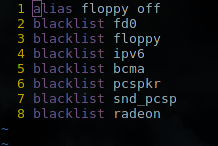
Next, you have to blacklist radeon (the opensource driver for ATI cards) in the file /etc/modprobe.d/modprobe.conf. Just open the file and add the following line into it. This file in ArchBang would look like the image below:
Next you have to add fglrx into the MODULES part of the file /etc/rc.conf. Just open (as root) the file and add fglrx into the MODULES part.
The last file you need to edit is /boot/grub/menu.lst. Just open the file and add nomodeset in the kernel line, it would look like that:
kernel /vmlinuz-linux root=/dev/disk/by-uuid/1cd9c0ef-0ed5-4248-9f71-5e4a0547ddac loglevel=3 ro nomodeset quiet resume=/dev/disk/by-uuid/a4d53579-e8fe-41ce-9778-a72f5e98a2ec
Now, everything is done, you just have to reboot and enjoy the new ATI driver. To check if the driver works properly, you need to install the package mesa-demos
sudo pacman -S mesa-demos
then run:
glxinfo | grep direct
If you have the output saying: direct rendering: Yes then everything is successfully done.