How to customize the command prompt
I got several messages and comments asking me about my command prompt lines, and as I have promised, this post will be about how to customize the command prompt in the terminal. Here is my current command prompt:
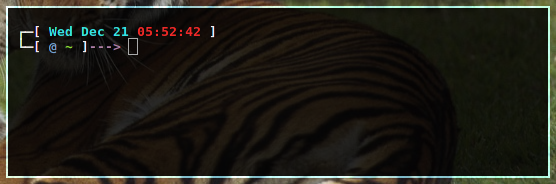
The command prompt is controlled by special shell variables, they are PS1, PS2, PS3 and PS4. If set, the value is executed as a command prior to issuing each primary prompt. Here is what each variable will do:
PS1 : The value of PS1 is expanded and used as the primary prompt string. The default value is \s-\v\$ .
PS2 : The value of this parameter is expanded as with PS1 and used as the secondary prompt string. The default is >
PS3 : The value of this parameter is used as the prompt for the select command
PS4 : The value of this parameter is expanded as with PS1 and the value is printed before each command bash displays during an execution trace. The first character of PS4 is replicated multiple times, as necessary, to indicate multiple levels of indirection. The default is +
However, for the sake of simplicity, I think you should care about PS1 only. To know your current PS1, just run the following command in your terminal:
echo $PS1
And here is the output of mine:
\n \[\e[1;37m\]┌─[\[\e[1;36m\] \d \[\e[1;31m\]\T \[\e[1;37m\]] \n\[\e[1;37m\] └─[ \[\e[1;34m\]@ \[\e[1;32m\]\w \[\e[1;37m\]]\[\e[1;35m\]---> \[\e[0;37m\]
To change your PS1, you need to edit the bash config file (/etc/bashrc for root and /home/username/.bashrc for local user), just add the PS1 command into the bash config file. To test how a PS1 looks, just run the command like this then hit enter.
PS1="hello world:"
And you will get the result:
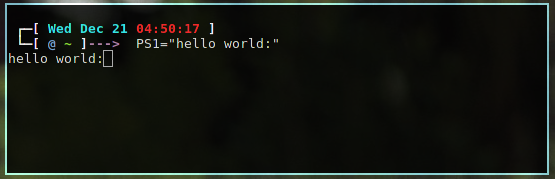
So basically, bash displays the primary prompt PS1 when it is ready to read a command. Bash allows these prompt strings to be customized by inserting a number of backslash-escaped special characters that are decoded as follows:
 \a : an ASCII bell character (07)
 \d : the date in "Weekday Month Date" format ("Tue May 26")
 \D{format} : the format is passed to strftime(3) and the result is inserted into the prompt string; an empty format results in a locale-specific time representation. The braces are required
 \e : an ASCII escape character (033)
 \h : the hostname up to the first '.'
 \H : the hostname
 \j : the number of jobs currently managed by the shell
 \l : the basename of the shell’s terminal device name
 \n : newline
 \r : carriage return
 \s : the name of the shell, the basename of $0 (the portion following the final slash)
 \t : the current time in 24-hour HH:MM:SS format
 \T : the current time in 12-hour HH:MM:SS format
 \@ : the current time in 12-hour am/pm format
 \A : the current time in 24-hour HH:MM format
 \u : the username of the current user
 \v : the version of bash (e.g., 2.00)
 \V : the release of bash, version + patch level (e.g., 2.00.0)
 \w : the current working directory, with $HOME abbreviated with a tilde
 \W : the basename of the current working directory, with $HOME abbreviated with a tilde
 \! : the history number of this command
 \# : the command number of this command
 \$ : if the effective UID is 0, a #, otherwise a $
 \nnn : the character corresponding to the octal number nnn
 \\ : a backslash
 \[ : begin a sequence of non-printing characters, which could be used to embed a terminal control sequence into the prompt
 \] : end a sequence of non-printing characters
For example, to display the host name and the date and the current directory, the PS1 will be like this
PS1="[\d \t \u@\h:\w ] $ "
Here is the output:
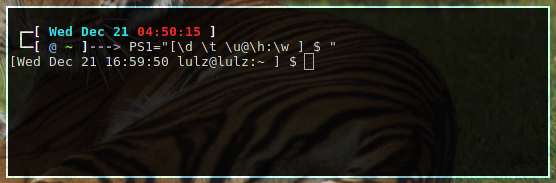
To add colors to the shell prompt, you need to use the following command syntax:
'\e[x;ym $PS1 \e[m'
The meaning of this syntax:
\e[ Start color scheme

x;y Color pair to use (x;y)

$PS1 is your shell prompt

\e[m Stop color scheme
And here is the list of the color codes that I copy from the Arch Wiki
 # Reset
 Color_Off='\e[0m'    # Text Reset
 # Regular Colors
 Black='\e[0;30m'    # Black
 Red='\e[0;31m'     # Red
 Green='\e[0;32m'    # Green
 Yellow='\e[0;33m'    # Yellow
 Blue='\e[0;34m'     # Blue
 Purple='\e[0;35m'    # Purple
 Cyan='\e[0;36m'     # Cyan
 White='\e[0;37m'    # White
 # Bold
 BBlack='\e[1;30m'    # Black
 BRed='\e[1;31m'     # Red
 BGreen='\e[1;32m'    # Green
 BYellow='\e[1;33m'   # Yellow
 BBlue='\e[1;34m'    # Blue
 BPurple='\e[1;35m'   # Purple
 BCyan='\e[1;36m'    # Cyan
 BWhite='\e[1;37m'    # White
 # Underline
 UBlack='\e[4;30m'    # Black
 URed='\e[4;31m'     # Red
 UGreen='\e[4;32m'    # Green
 UYellow='\e[4;33m'   # Yellow
 UBlue='\e[4;34m'    # Blue
 UPurple='\e[4;35m'   # Purple
 UCyan='\e[4;36m'    # Cyan
 UWhite='\e[4;37m'    # White
 # Background
 On_Black='\e[40m'    # Black
 On_Red='\e[41m'     # Red
 On_Green='\e[42m'    # Green
 On_Yellow='\e[43m'   # Yellow
 On_Blue='\e[44m'    # Blue
 On_Purple='\e[45m'   # Purple
 On_Cyan='\e[46m'    # Cyan
 On_White='\e[47m'    # White
 # High Intensty
 IBlack='\e[0;90m'    # Black
 IRed='\e[0;91m'     # Red
 IGreen='\e[0;92m'    # Green
 IYellow='\e[0;93m'   # Yellow
 IBlue='\e[0;94m'    # Blue
 IPurple='\e[0;95m'   # Purple
 ICyan='\e[0;96m'    # Cyan
 IWhite='\e[0;97m'    # White
 # Bold High Intensty
 BIBlack='\e[1;90m'   # Black
 BIRed='\e[1;91m'    # Red
 BIGreen='\e[1;92m'   # Green
 BIYellow='\e[1;93m'   # Yellow
 BIBlue='\e[1;94m'    # Blue
 BIPurple='\e[1;95m'   # Purple
 BICyan='\e[1;96m'    # Cyan
 BIWhite='\e[1;97m'   # White
 # High Intensty backgrounds
 On_IBlack='\e[0;100m'  # Black
 On_IRed='\e[0;101m'   # Red
 On_IGreen='\e[0;102m'  # Green
 On_IYellow='\e[0;103m' # Yellow
 On_IBlue='\e[0;104m'  # Blue
 On_IPurple='\e[10;95m' # Purple
 On_ICyan='\e[0;106m'  # Cyan
 On_IWhite='\e[0;107m'  # White
For example, to colorize the “hello world” prompt above, you can use the following PS1:
PS1="\[\e[1;31m\]hello\[\e[1;34m\] world:"
And here is the result
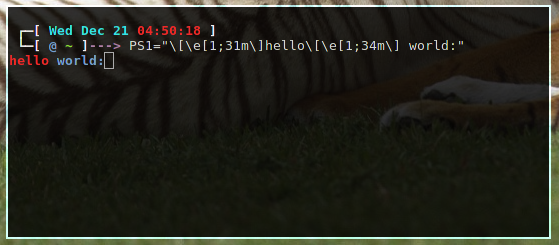
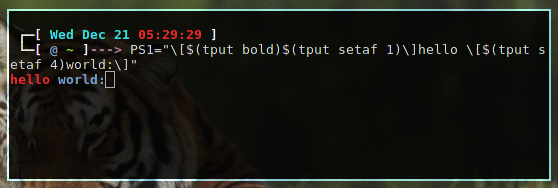
Another way to change the colors of the command prompt is to use tput. For example, to get the same color of the phrase “hello world” above using tput, the PS1 will be like this:
PS1="\[$(tput bold)$(tput setaf 1)\]hello \[$(tput setaf 6)world:\]"
Here is the result:
Here are the parameters of tput:
tput Text Modes:
 tput bold - Set bold mode
 tput dim - turn on half-bright mode
 tput smul - begin underline mode
 tput rmul - exit underline mode
 tput rev - Turn on reverse mode
 tput smso - Enter standout mode (bold on rxvt)
 tput rmso - Exit standout mode
 tput sgr0 - Turn off all attributes
tput colors:
 tput setab [1-7] - Set a background color using ANSI escape
 tput setb [1-7] - Set a background color
 tput setaf [1-7] - Set a foreground color using ANSI escape
 tput setf [1-7] - Set a foreground color
Color codes of tput:
 0 - Black
 1 - Red
 2 - Green
 3 - Yellow
 4 - Blue
 5 - Magenta
 6 - Cyan
 7 - White
So that’s all you need to know about how to customize and colorize the command prompt. If you have made any nice and creative command prompt, please share them on the comments, I would really appreciate.
And here is the sickest PS1 I’ve ever used:
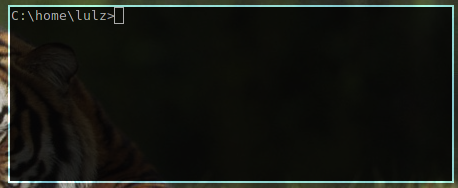
PS1='C:${PWD//\//\\\}>'
The command prompt then will look like this: